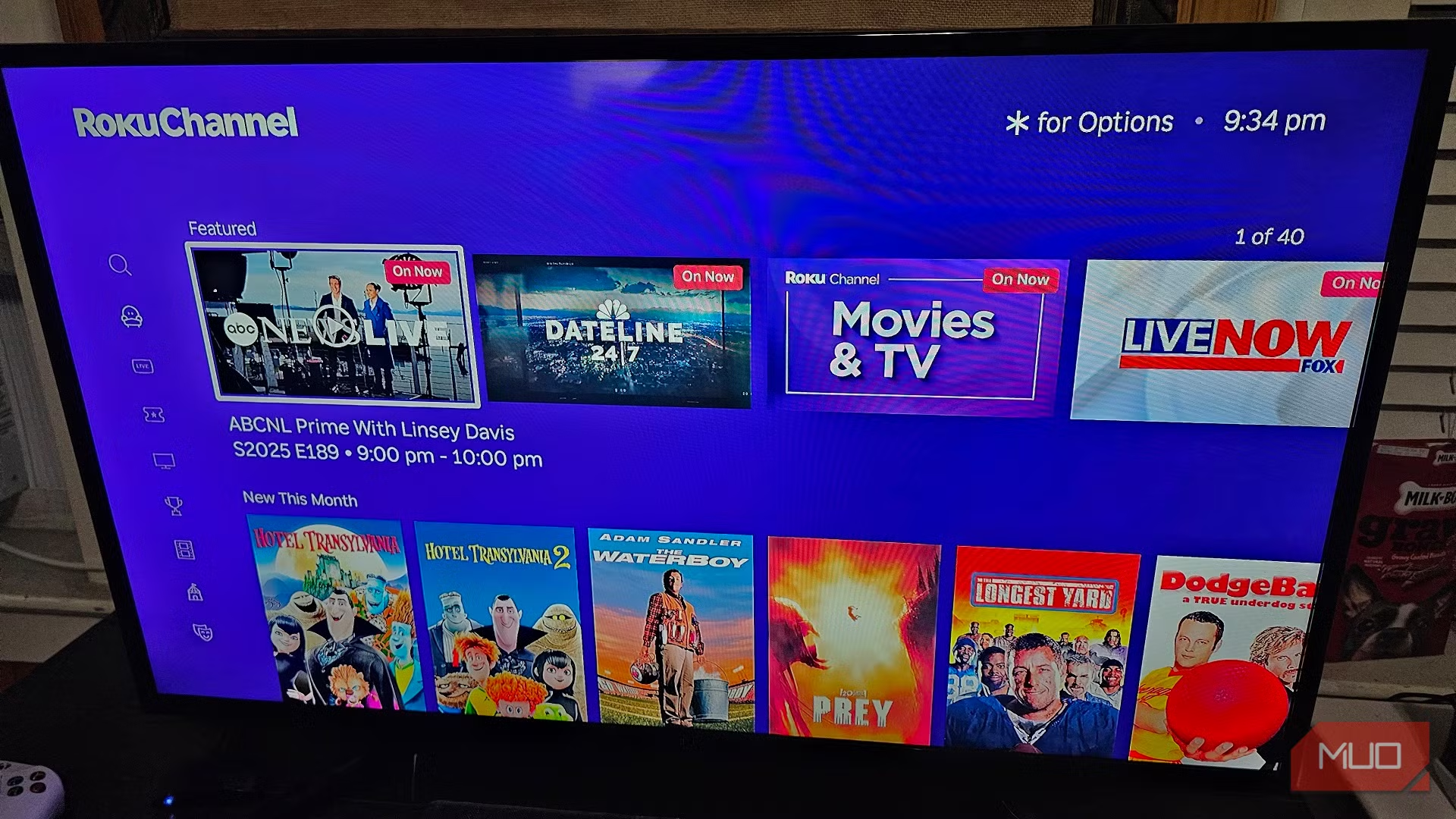
Many Roku users are looking for ways to remove the "For You" section and personalized recommendations that appear throughout the Roku interface.
With Roku's latest home screen redesign, recommendation features have become more prominent. The company now uses viewing history and AI-powered personalization to suggest shows, movies, and live events directly on the home screen.
The good news is that some recommendation rows can be hidden. The bad news is that certain "For You" elements are now built directly into Roku's interface and cannot be completely removed.
CAN YOU COMPLETELY REMOVE "FOR YOU"?
According to Roku's latest home screen design, personalized recommendations are now integrated into the platform experience. Some recommendation rows can be hidden, but certain recommendation sections remain part of the Roku interface.
METHOD 1: HIDE RECOMMENDATION ROWS
For many Roku devices, this is the easiest solution.
Steps:
- Open Settings
- Select Home Screen
- Choose Recommendation Rows
- Select Hide
- Restart your Roku device
Roku moderators have confirmed that recommendation rows can be hidden through this setting on supported devices.
METHOD 2: LIMIT PERSONALIZATION
Even if the "For You" area remains visible, you can reduce personalization.
Disable Ad Personalization
- Go to Settings
- Select Privacy
- Choose Advertising
- Enable Limit Ad Tracking
This reduces how Roku uses viewing behavior for personalized advertising and recommendations.
METHOD 3: TURN OFF CONTENT RECOGNITION
Roku's Automatic Content Recognition (ACR) tracks viewing activity across various sources.
Steps:
- Open Settings
- Select Privacy
- Choose Smart TV Experience
- Disable Automatic Content Recognition
This can reduce the amount of viewing data used to personalize content suggestions.
METHOD 4: REMOVE INDIVIDUAL RECOMMENDATIONS
On some recommendation screens:
- Highlight a suggested title
- Press the * button on your remote
- Choose Remove from List
This doesn't remove the feature itself, but it helps train the recommendation system and removes unwanted suggestions.
WHY SOME "FOR YOU" SECTIONS CANNOT BE REMOVED
Roku's newest interface redesign focuses heavily on content discovery.
The company has introduced:
- AI-powered recommendations
- Personalized content rows
- Quick Access suggestions
- Genre-based discovery sections
These elements are now core components of the Roku experience and are not always optional.
Community discussions and Roku support responses indicate that some recommendation areas are permanently integrated into the interface and cannot currently be hidden.
ADDITIONAL HOME SCREEN CLEANUP TIPS
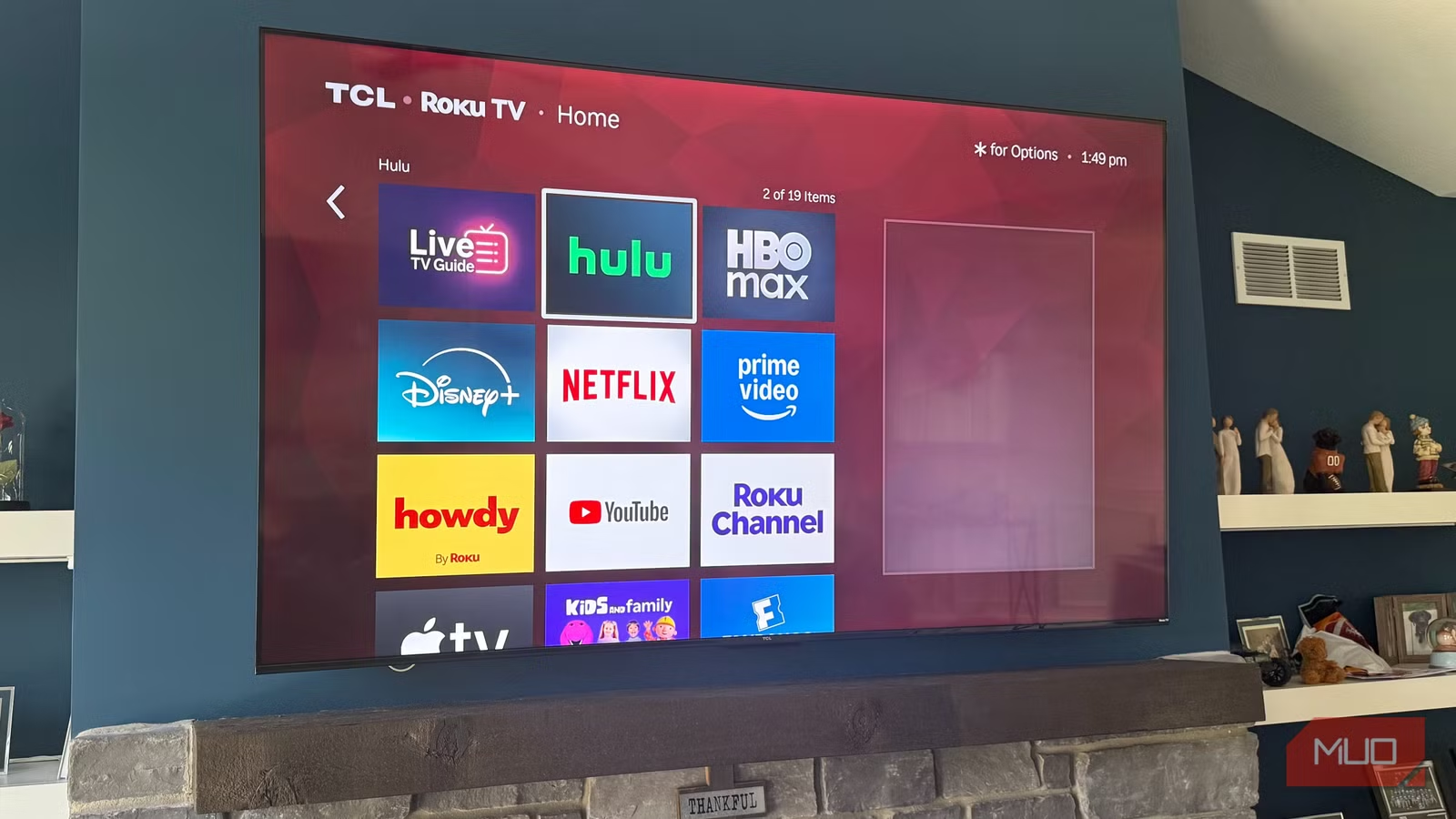
To make Roku feel less cluttered:
Remove Unused Apps
- Highlight an app
- Press the * button
- Select Remove Channel
This helps create a cleaner interface and faster navigation.
Reorganize Favorite Apps
Move your most-used streaming apps to the top of the app grid for easier access.
Customize Quick Access
You can add or remove shortcuts from Roku's Quick Access section by using the * button on supported tiles.