At the end of a long workday, most of us simply snap our laptops shut and walk away without a second thought. It is a mindless habit that feels efficient, but it leaves many wondering if they are slowly killing their hardware by skipping a proper shutdown. The truth behind this common tech debate is not a simple yes or no. While modern sleep modes are designed for convenience, relying on them indefinitely can lead to background clutter and performance lag. Understanding when to let your machine rest and when a full reboot is required is the key to extending your laptop‘s lifespan and keeping your operating system running smoothly.
What Actually Happens When You Close Your Laptop
When you close your laptop lid, most modern computers automatically enter sleep mode. In sleep mode, your laptop pauses most activity, keeps your open apps, leaves your files in memory and uses a small amount of power to stay ready. That is why it wakes up almost instantly when you reopen it.
This is very different from shutting down, which fully stops all processes, clears memory and powers the system off completely. Sleep mode is designed for convenience, not long‑term rest. Most of the time, it works exactly as intended, but you should check your display settings to make sure they are not set to “never” for turning off the screen or sleeping, or your laptop will continue running even when closed.
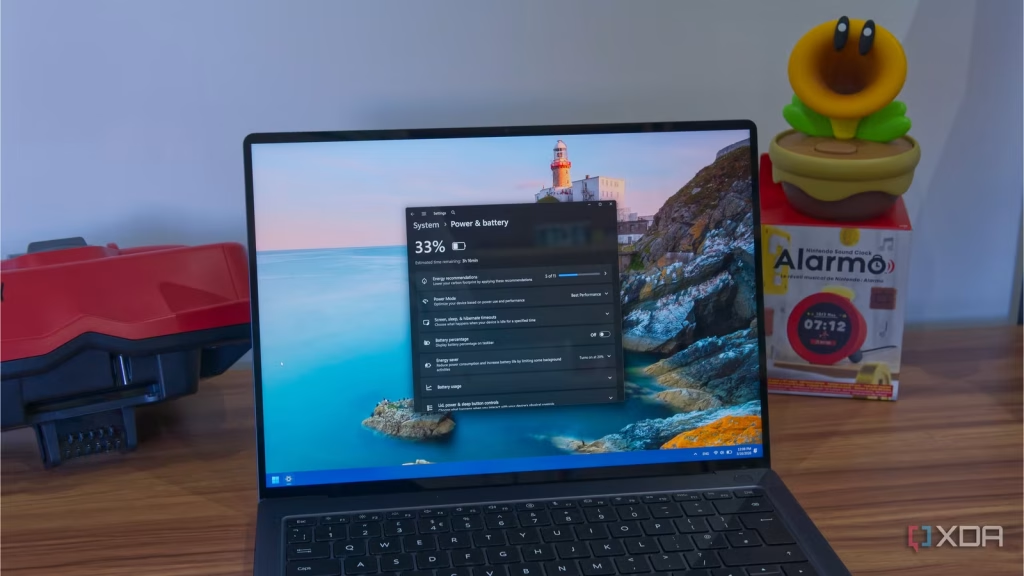
On a MacBook, you can check this under Battery and Lock Screen options in System Settings. For Windows laptops, look in System settings under Screen, sleep and hibernate and Lid and power button controls.
When Closing Your Laptop Is Totally Fine
For everyday use, closing your laptop is usually harmless, especially if you are opening it again within a few hours or even a day. Sleep mode is ideal when you are stepping away briefly, you want to pick up right where you left off, you are moving between meetings or locations, or your laptop is plugged in or has plenty of battery.
Modern laptops, especially newer MacBooks and Windows PCs, are optimized for sleep mode. They manage power efficiently, pause background activity and handle short idle periods without issue. If your laptop feels fast and nothing seems off, there is usually no reason to worry.
A quick summary of when sleep mode works well:
- Short breaks (lunch, coffee, quick errand)
- Moving between meeting rooms or home and office
- Overnight if you will use the laptop again the next morning
- When your laptop has good battery charge or is plugged in
When Sleep Mode Can Cause Problems
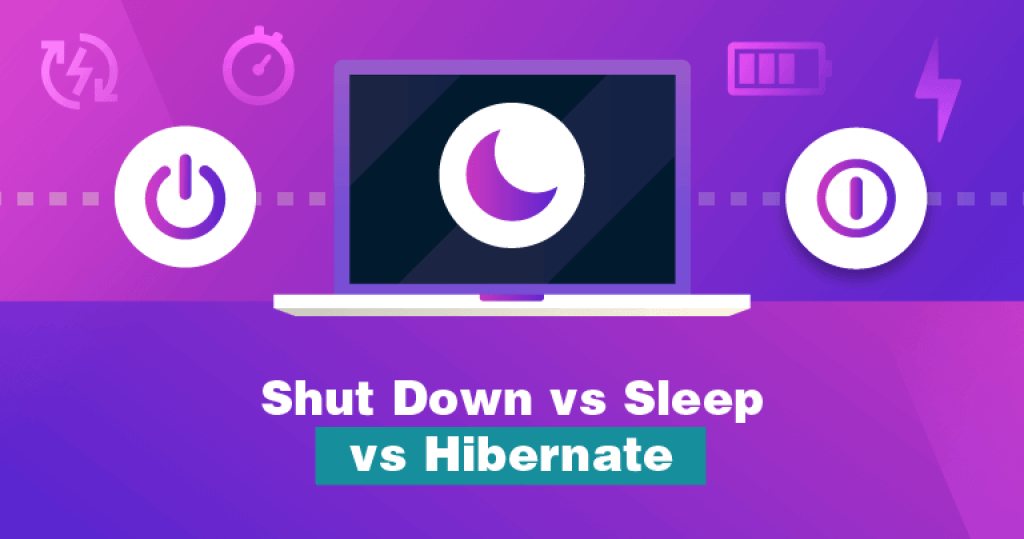
Relying only on closing your laptop and never shutting it down can create issues over time. Sleep mode does not fully reset your system. Apps stay loaded, background processes continue to run and small software glitches can pile up.
You may notice the following if you only ever put your computer to sleep:
- Slower performance after days or weeks without a restart
- Apps freezing or behaving oddly
- Battery drain while the laptop is “asleep”
- Missed system or security updates
- Fans spinning or heat buildup inside a closed bag
This is especially common if you run heavy apps such as Photoshop, Steam or your web browser with dozens of open tabs, or if you connect external devices. Sleep mode also is not ideal if you are packing your laptop into a backpack for hours. Some laptops wake unexpectedly, which can lead to heat buildup and battery loss.
Why Restarting Or Shutting Down Helps
Turning your laptop off, or at least restarting it, clears memory, stops stuck processes and gives the operating system a clean slate. It is one of the simplest ways to fix minor issues and keep things running smoothly.
You should always restart your laptop when:
- Your laptop feels sluggish
- Apps won‘t close properly
- Updates are pending
- You have gone days or weeks without a reboot
Restarting is not a guarantee that it will fix bigger problems such as low RAM, high CPU usage or a nearly full hard drive, but it is still worth doing because a lot of the time it does help. You do not need to shut down every night, but restarting occasionally is still good digital hygiene.
So, What Should You Actually Do?
Here is the practical middle ground that most experts recommend.
For short breaks and daily use
Close your laptop. Sleep mode is designed for this. Your laptop will wake instantly, and you will not lose your place.
For regular maintenance
Restart your laptop every few days or at least once a week. A quick restart clears memory and stops any stuck background processes.
For travel or long periods of not using the laptop
Shut it down completely. This prevents battery drain, heat buildup and the risk of the laptop waking up inside a bag.
For troubleshooting
If your laptop is acting weird, restart or shut down before trying anything else. A clean boot often fixes minor glitches that sleep mode cannot resolve.
The table below summarises the best action for each common scenario.
| Scenario | Best Action | Why |
|---|---|---|
| Stepping away for coffee | Sleep (close lid) | Quick wake‑up, no loss of work |
| End of workday, using laptop tomorrow | Sleep (close lid) | Convenient; overnight drain is minimal |
| End of week, not using laptop over weekend | Shut down | Conserves battery, clears system memory |
| Packing laptop in a bag for travel | Shut down | Prevents accidental wake‑up and overheating |
| Laptop feels slow or apps are freezing | Restart | Clears memory, stops stuck processes |
| System update pending | Restart or shut down | Updates require a full reboot to install |
| Not using laptop for several days or weeks | Shut down | Preserves battery life and prevents clutter |
Comparing Sleep, Restart And Shutdown
| Aspect | Sleep | Restart | Shut Down |
|---|---|---|---|
| Power Usage | Very low (keeps RAM active) | None (during reboot process) | None |
| Wake‑Up Time | 1‑3 seconds | 20‑60 seconds | 20‑60 seconds |
| Open Apps Saved | Yes | No (apps close, reopen on boot) | No |
| Background Processes | Continue running (some paused) | Stopped completely | Stopped completely |
| Updates Installed | No (requires restart) | Yes | Yes (on next boot) |
| Best For | Short breaks, same‑day use | Regular maintenance, troubleshooting | Travel, long idle periods, updates |
| Risk Of Heat Buildup | Low (if laptop stays on desk) | None | None |
Frequently Asked Questions (FAQs)
Is it bad to close my laptop every day without shutting down?
No, it is not bad. Modern laptops are designed to handle daily sleep cycles. However, you should still restart your laptop occasionally (once a week) to clear memory and install updates.
Can closing my laptop drain the battery?
Sleep mode uses a small amount of power. On most laptops, you will lose 1‑3 percent of battery per hour in sleep. If you leave your laptop in sleep for an entire weekend, the battery may be completely drained. Shut down instead if you will not use it for more than a day.