TV speakers are bad. Even on the best televisions, the speakers are thin, face backwards and lack the physical size needed to produce quality sound. As TVs get thinner, audio performance continues to suffer. The most common complaint is difficulty understanding dialogue, especially during action scenes or when background music plays. This guide covers free software settings and physical adjustments that can improve your TV‘s sound without spending any money. While no setting can transform your TV‘s audio into a cinema experience, these tricks can make dialogue clearer and reduce frustration.
TV Audio Settings That Actually Help
Manufacturers know that bad sound is a major complaint. They have added various audio processing features to help compensate for poor hardware. None of these are magic, but they can make a noticeable difference.
Sound Mode: Many TVs have preset sound modes designed for different content types. Look for names like Clear Voice, Speech Mode, Dialogue Boost or News. These modes adjust the frequency balance to make voices stand out more clearly. Movie or Cinema modes often emphasize bass and special effects, which can bury dialogue. Standard or Normal mode may be better than any preset, but it is worth testing each option to see what works best for your TV.
Dialog Enhancers: Some TVs include a dedicated dialogue enhancement feature separate from the main sound mode. These are often labelled Speech Boost, Dialogue Enhancement, Voice Clarity or Clear Voice. When enabled, they selectively increase the volume of frequencies where human speech resides. This is often the most effective single setting for improving dialogue intelligibility.
EQ Settings: If your TV has an equalizer, you can manually adjust bass, midrange and treble levels. The goal is to boost the frequencies where voices live while reducing competing frequencies. Try turning down the bass a few notches first, then increase the treble. If there is a separate midrange control, turning that up is another option. The difference should be noticeable, but you may need to experiment. Counterintuitively, turning both bass and treble down slightly can sometimes boost the perceived midrange, where most voices are located.
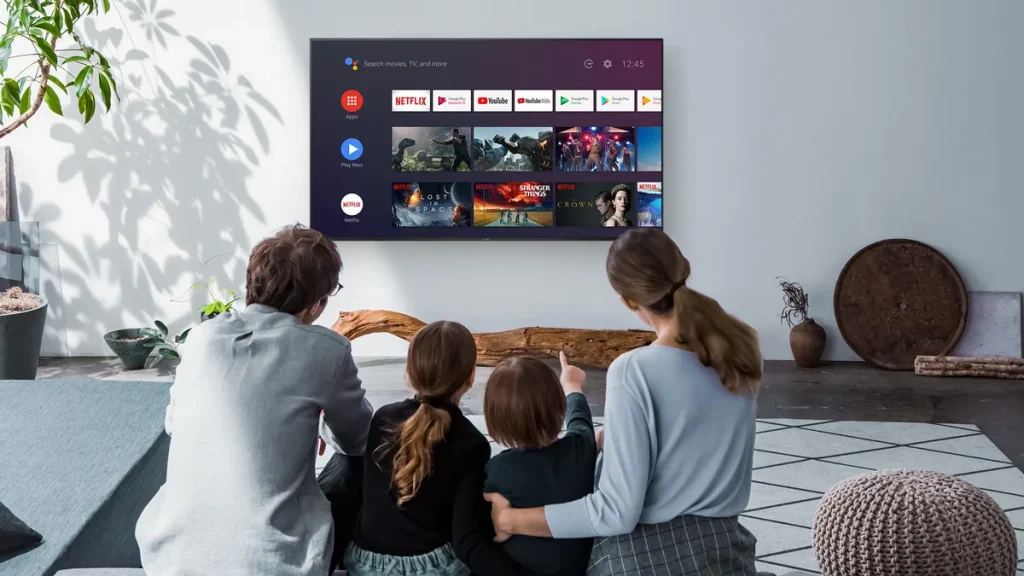
Automatic Volume Control (Compression): Some TVs have a feature that lowers loud sounds and boosts quiet ones. This is often called Auto Volume, Volume Leveling, Night Mode or Compression. It reduces the dynamic range, making explosions quieter and whispers louder. This is particularly useful for watching movies late at night or on a TV that struggles with dialogue clarity. The downside is that the volume may pulse or sound unnatural during scene transitions, but for many viewers, this trade‑off is worth it.
Source Settings: Stereo Vs Surround Sound
If you use an external streaming device, cable box, satellite receiver or gaming console, check its audio output settings. Many devices default to sending surround sound, expecting the TV to decode it even though the TV‘s tiny speakers cannot reproduce surround channels. Switching the output to Stereo or PCM Stereo tells the device to send a simpler two‑channel signal.
In some cases, the stereo and surround mixes are different. Creators may mix the stereo version with more emphasis on dialogue because they know it will be played on devices with poor speakers. Switching to stereo can result in much clearer voices without changing any other setting. This is worth checking on every external source connected to your TV.
Streaming apps sometimes have their own audio settings. For example, some Amazon Prime Video shows include a built‑in dialogue boost mode called Dialogue Boost. Netflix, Disney Plus and other services may have similar options hidden in their playback menus.
Physical Adjustments: Moving Your TV
TVs are designed to sit on a stand with a flat wall behind them. The sound from the rear‑facing speakers is meant to bounce off that wall and reflect toward the viewer. If your TV is in a cabinet, between shelves, in a corner, near the ceiling or on a stand with no wall behind it, the sound can be muffled or dispersed incorrectly.
If moving your TV is an option, try placing it where there is a flat, solid surface behind it. A wall is ideal. If your TV is already on a stand, experiment with moving it closer to or farther from the wall. The sound will change, and depending on your room, it may improve.
If you cannot move the TV, look for ways to free the sound from its prison. Make sure the speakers are not blocked by objects on the shelf or inside a cabinet. Pull the TV forward so the sound has a clearer path to your ears. These small adjustments are free and can make a noticeable difference.
When Free Is Not Enough: Soundbars And Speakers
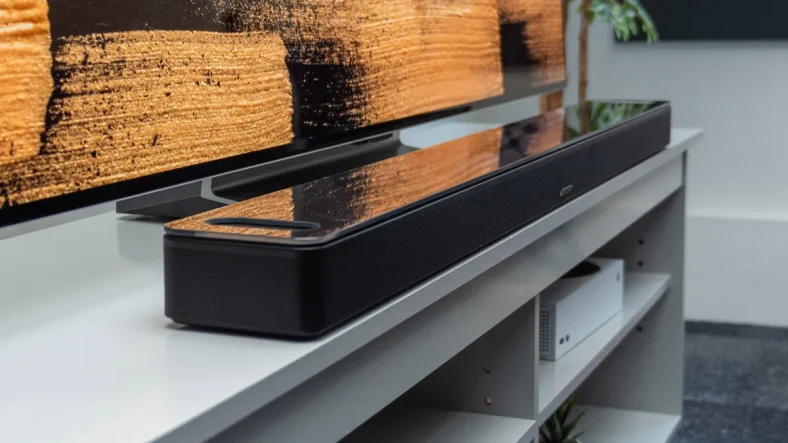
If you have tried all the free settings and adjustments and are still unhappy with your TV‘s audio, the only real solution is new hardware. TV speakers are physically incapable of producing good sound. The most cost‑effective upgrade is a soundbar. Inexpensive soundbars sound dramatically better than any TV‘s built‑in speakers. Setup is typically a single cable from the TV to the soundbar plus power. Many soundbars also include a wireless subwoofer and can double as Bluetooth speakers for music.
For users who want even better sound, a receiver with separate bookshelf speakers is the next step up. This setup offers more convincing and engaging audio, but the cost and installation effort are much higher. Between soundbars and full component systems are soundbars that include wireless surround speakers, offering a middle ground.
Any of these hardware solutions will vastly improve dialogue clarity and overall sound quality. They are not free, but they are the only way to truly fix the fundamental problem of tiny, backward‑facing TV speakers.
Frequently Asked Questions (FAQs)
Why does my TV sound so bad even though the picture is great?
Modern TVs are extremely thin. There is no physical space for large speakers or acoustic chambers. The speakers face backward, and the tiny drivers cannot produce the full range of human hearing. Manufacturers prioritise picture quality over sound because most buyers do not consider audio when purchasing.
What is the best TV setting for dialogue?
Enable any Dialogue Enhancement or Clear Voice setting first. Then switch the sound mode to Speech or News. If those do not help, open the EQ and turn down the bass while turning up the treble and midrange. Finally, enable Auto Volume or Volume Leveling to reduce loud peaks.